Boards, files and offline
Your boards
Click the board name at the top left to open the board menu.
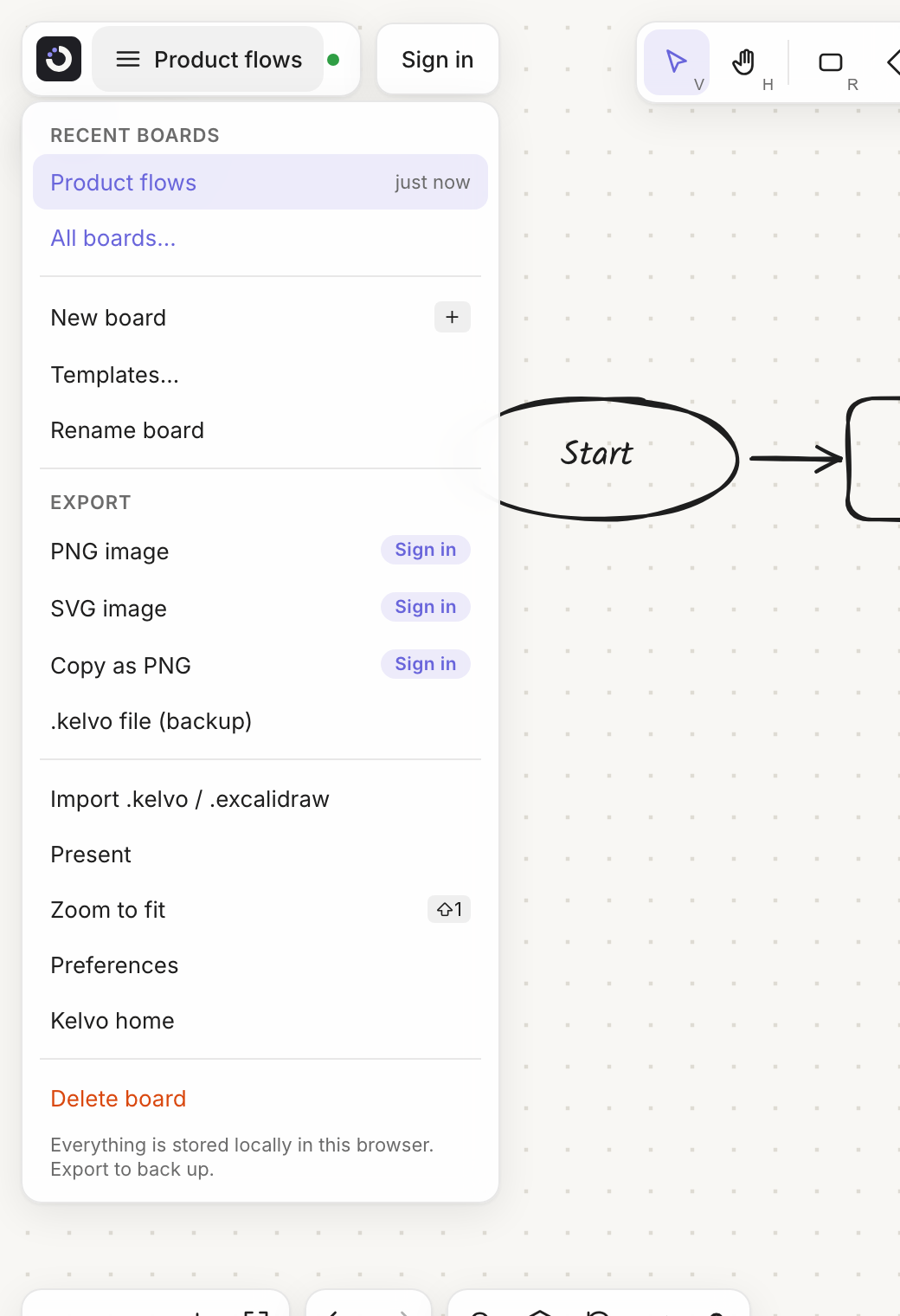
| To | Do this |
|---|---|
| Open a board | Pick it under Recent boards (the last 3 you changed), or choose All boards… to see every board as a card with a picture of it. A ☁ marks a board in the cloud, ⇄ one shared with you, and ☁ with a lock one that's end-to-end encrypted (private mode, Pro+). Each account on this browser (and the guest) has its own list |
| Find a board | All boards…, then type in the search box; sort by Recent or A–Z |
| Make a board | New board (also in the command palette) |
| Rename it | Rename board, type, press Enter (Esc cancels). In All boards…, the ⋯ on a card renames any board; a board in the cloud is renamed once you open it |
| Copy it | All boards… → ⋯ → Make a copy: every page, as a new board |
| Delete it | Delete board (or ⋯ → Delete in All boards…) and confirm. This removes it from this device and can't be undone |
All boards… is one window with tabs: Boards, Account & plan (your plan, usage, upgrading or managing the subscription; also reached from the account button), Private mode (once you're signed in, tagged Pro+; see Pro+ and private mode) and Preferences (theme, background, pen drawings and how new shapes start).
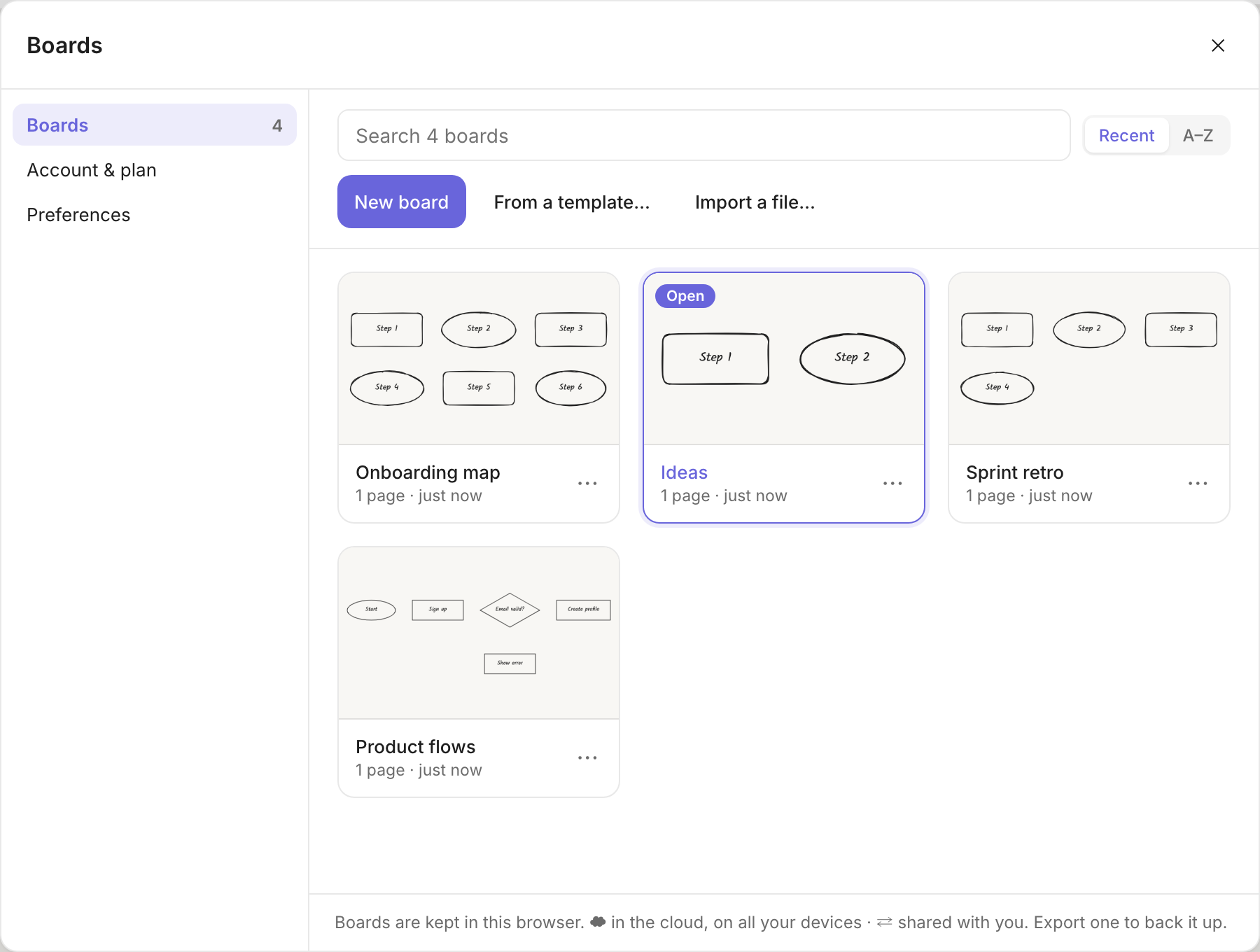
When you delete the board you're on, Kelvo opens your next most recent board, or a new empty one.
Boards live in this browser. A board made in Chrome on your laptop isn't in Safari or on your phone, unless you turn on sync for it (see Sharing). To move a board without syncing, export it as
.kelvoand import it on the other device. Guests can keep 1 board and free accounts 3; see Accounts and plans.
Used the app when it was called Phantink? Your boards from then are at phantink.com/d. Open it and choose Move my boards to bring them to Kelvo.
Sharing
Press Share (top right) to put a board on your other devices and to draw on it with other people. Sharing needs an account. On Pro every board is in the cloud already, new ones included; to keep one on this device only, choose Keep on this device only in its Share dialog (and Put it in the cloud to undo that).
- Turn on sync. The board is encrypted on your device and sent to Kelvo's sync server. From now on it opens on every device where you sign in, and keeps working offline: changes made apart are merged, not overwritten. On a device where it hasn't been opened yet, its card in All boards… fetches its name and a picture by itself; if it can't (offline), the card says Not on this device yet, and opening the board downloads it.
- Turn the link on. Under Anyone with the link, choose Can edit (or Can view, on Pro).
- Copy link and send it. The link holds the board's key, so only send it to people who should see the board.
Everyone on the board shows as a round avatar next to Share, and their pointer moves on your screen with their name. What they have selected is outlined in their colour, and a box they drag moves while they drag it. Click an avatar to follow that person's view; move the view yourself, or press Esc, to stop.
| Free account | Pro | |
|---|---|---|
| Boards you can sync | 3 | Every board |
| People on a board at once | 5 | 20 |
| Pictures (images, PDF pages) per board | 200 MB | 5 GB |
| Who can join with the link | People who sign in (free) | Choose: signed-in people, or anyone with the link |
| View-only links | Not included | Yes |
| Invite people by email, each with their own access | Not included | Yes |
| Reset link (takes access back) | Not included | Yes |
Joining a board. Open the link. The board is added to your board list on that device and fills in. If the board asks for an account, Sign in to join this board appears next to Share. On a view-only board the drawing tools are hidden and View only shows next to Share: you can look around, switch pages, present and export.
Invited by email (Pro). The board's owner types your address under People. You get an email, and the board appears in your board list when you sign in with that address. No link needed.
Taking access back. Turning the link to No access stops anyone from joining with it, and Reset link (Pro) gives the board a new key, so the old link stops working for everyone who has it. People you invited by email keep their access; remove them under People. Someone who had the board keeps the copy already on their device.
Stop syncing. On your own board, Stop syncing (in the Share dialog) keeps the board on this device and removes it from the sync server; other devices keep the copy they have. Deleting a synced board does the same. On a board someone else shared with you, Stop syncing on this device only stops it syncing here.
Saving
There is no Save button. Every change is written to your device straight away, and again when you switch tabs or close the page. The dot next to the board name shows the state:
| Dot | Meaning |
|---|---|
| Saved on this device | Everything is stored |
| Saving… | A change is being written |
| Couldn't save | The browser refused to store the change. See Troubleshooting |
Kelvo asks the browser to keep its storage permanently, so it isn't cleared to free up space. For restoring earlier states, see version history.
Several tabs: if the same board is open in two tabs, changes on a page show up in the other tab as you make them. Renaming the board or adding a page shows up in the other tab after a reload.
Exporting
From the board menu, under Export:
| Option | You get |
|---|---|
| PNG image | A picture of the current page, at twice screen resolution, on white |
| SVG image | A scalable vector picture of the current page, on white |
| Editable SVG / Editable PNG | The same picture, saved as .kelvo.svg / .kelvo.png, with the board inside it: it shows as a normal picture anywhere (GitHub, a README, a slide), and Kelvo opens it as a board again |
| Copy as PNG (⌘⇧C) | The selection, or the whole page if nothing is selected, copied to the clipboard |
| Copy as Markdown | The selection, or the whole page, as Markdown text: headings, lists, tables, code, mind maps as lists and flowcharts as Mermaid (see Copying as Markdown). Works without an account |
| .kelvo file | A backup of the whole board, every page included, that you can import later |
- PNG image, SVG image, the editable pictures and Copy as PNG need an account (a free one is enough). Guests can always save the .kelvo file. See Accounts and plans.
- Exports are always light, even in dark mode.
- Drafts that you haven't kept are left out.
- An editable picture carries only what it shows: the page, or the frame you exported (right-click it, Export this frame → Download editable SVG). Very large images inside it may be left out of the board it carries; the shapes still come back.
- A PNG leaves out hidden layers, but an SVG includes them.
Images in a
.kelvofile: the file carries the board's images and PDF pages, so it opens complete on another device. Files exported by older versions of the app only referred to them: on another device their shapes and links come across, but the images don't.
Importing
Open Import .kelvo / .kelvo.svg / .excalidraw in the board menu, or drop a file onto the board. Backups made when the app was
called Phantink (.phantink files) open the same way. Each import becomes a new
board, named after the file.
From Excalidraw (.excalidraw files, or pasted Excalidraw content):
| Comes across | Doesn't come across |
|---|---|
| Rectangles, ellipses and diamonds, with their text as labels and its position (left, right, top, bottom) | Images |
| Free text | Frames and embeds |
| Pen drawings | Opacity and dashed strokes |
| Rotation of shapes, text and pen drawings | |
| Arrows and lines connected to boxes at both ends, which become links, with their labels | Arrows that aren't connected to boxes at both ends |
| Stroke colours, fills, stroke width and sloppiness | Fonts and font sizes, and the alignment of free text |
| Groups, locks and hyperlinks |
From Miro and FigJam
Copy and paste brings a Miro or FigJam board across, ready to edit:
- In Miro or FigJam, select what you want (a frame or section, several of them, or the whole board with ⌘A).
- Copy it with ⌘C (Ctrl+C on Windows).
- Open your Kelvo board and paste with ⌘V (Ctrl+V).
The items arrive where they were in Miro or FigJam, selected together, and a note at the bottom says how many came across. ⌘Z takes the whole paste away in one step. Everything happens in your browser: what you copied isn't sent anywhere.
| Comes across | Doesn't come across |
|---|---|
| Boxes, circles and diamonds, with their text | Pictures: a dashed box marks where each one was, so you can drop the picture in again |
| Sticky notes, in their colours | Stamps, emoji, widgets, embeds and cards |
| Free text, with its size and bold, italic and lists | Miro's data tables |
| Frames (Miro) and sections (FigJam), with their names | Arrows with a loose end, or ending on a frame or a table |
| Arrows between items, on the same sides, with their labels and colours | Comments, votes and timers |
| Tables (FigJam) | |
| Fills, text colours and fonts (Kelvo's closest: Normal, Serif or the hand font) |
Text is made smaller where Kelvo's fonts need more room than the original. A board that is copy-protected in Miro pastes its text only. Copies from Figma's design editor paste as text, as before: only FigJam boards come across this way.
Miro is a trademark of Miro, and Figma and FigJam are trademarks of Figma, Inc. Kelvo isn't affiliated with either.
Dropping images onto the board places them; dropping a .kelvo, .kelvo.svg, .kelvo.png or .excalidraw
file opens it as a new board. Pasting the text of a .kelvo.svg (or the file itself) onto a board adds its shapes,
ready to edit.
Working offline and installing the app
Once you've opened the app while online, Kelvo keeps working without a connection:
- drawing, pages, layers, search and version history
- export and import
Smart Assist's AI features need a connection. Without one, the chip shows AI unavailable and on-device suggestions and Check diagram keep working.
Open the app itself (not just the home page) at least once while online, so your browser has everything it needs offline.
Install it to get a Kelvo app icon that opens straight to your boards. Use your browser's install option:
- Chrome or Edge: the install icon in the address bar
- Safari on iPhone or iPad: Share → Add to Home Screen
The installed app works offline in the same way.
Board addresses
| Address | Opens |
|---|---|
/d | Your last board |
/d/<board id> | That board, if it's in this browser. Otherwise your last board, with the message "That board isn't on this device" |