Smart Assist
Smart Assist is Kelvo's co-pilot. While you draw, it drafts the next step as dashed violet "ghost" boxes that you keep with Tab. It can also complete labels, tidy wording, check a diagram for problems, and do what you ask for when you write @kelvo in a box or text.
Smart Assist is off until you turn it on.
Turning it on
Click Suggest or Auto-draft in the top-right corner. The first time, a notice explains what is sent; click Turn on.
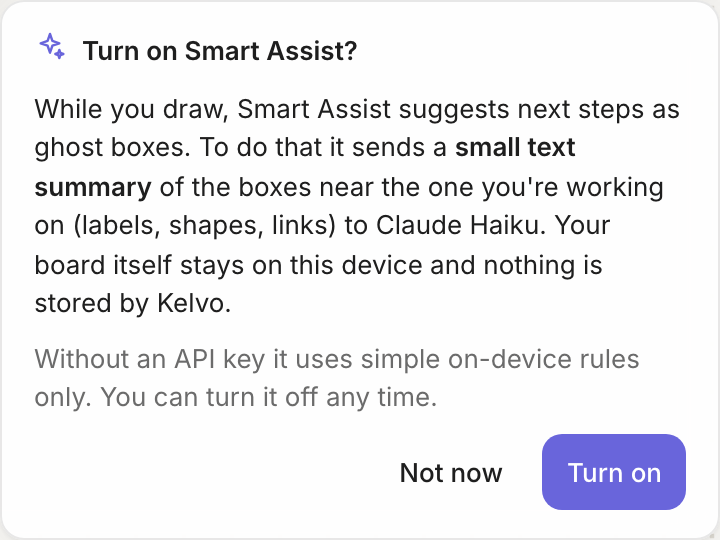
The notice also appears the first time you send an @kelvo request, use Make diagram or use Convert sketch. After you accept, Kelvo remembers your choice on this device.
Modes

| Mode | What happens after you pause |
|---|---|
| Off | Nothing happens automatically. You can still use @kelvo and the commands below on purpose |
| Suggest | Ghost boxes appear. Nothing is added until you accept |
| Auto-draft | Dashed draft boxes are added to the board. Keep or discard them all at once |
The mode is remembered on this device, for all boards.
The status chip
The spark at the left of the switch shows what Smart Assist is doing.
| Chip | Meaning |
|---|---|
| (spark only) | Ready, with AI |
| Thinking… | A request is on its way |
| AI unavailable | Smart Assist can't reach the AI right now. Only simple on-device suggestions appear. It retries by itself |
| AI paused until … | You've used your plan's AI requests for now; the chip shows when they come back. Only simple on-device suggestions appear until then. See Accounts and plans |
| Offline | A request just failed (shown for a few seconds) |
Suggestions (Suggest mode)
- Type a label and finish it, with Enter or by clicking away.
- Pause. After about half a second, the suggested next steps appear as ghosts, linked to your box.
- Choose:
- Tab keeps all of them.
- Click one ghost to keep just that one (and the ghosts that lead to it).
- Esc, or clicking elsewhere, dismisses them.
Suggestions keep coming while you scroll, zoom or click empty canvas. If they arrive while you're dragging, they appear when you let go. They're dropped only if you select or edit another box, or change the box they're for.
To get a suggestion back (you clicked elsewhere, or dismissed it): select the box and leave the pointer resting on it for three seconds. Suggest next steps in the right-click menu does the same at once.
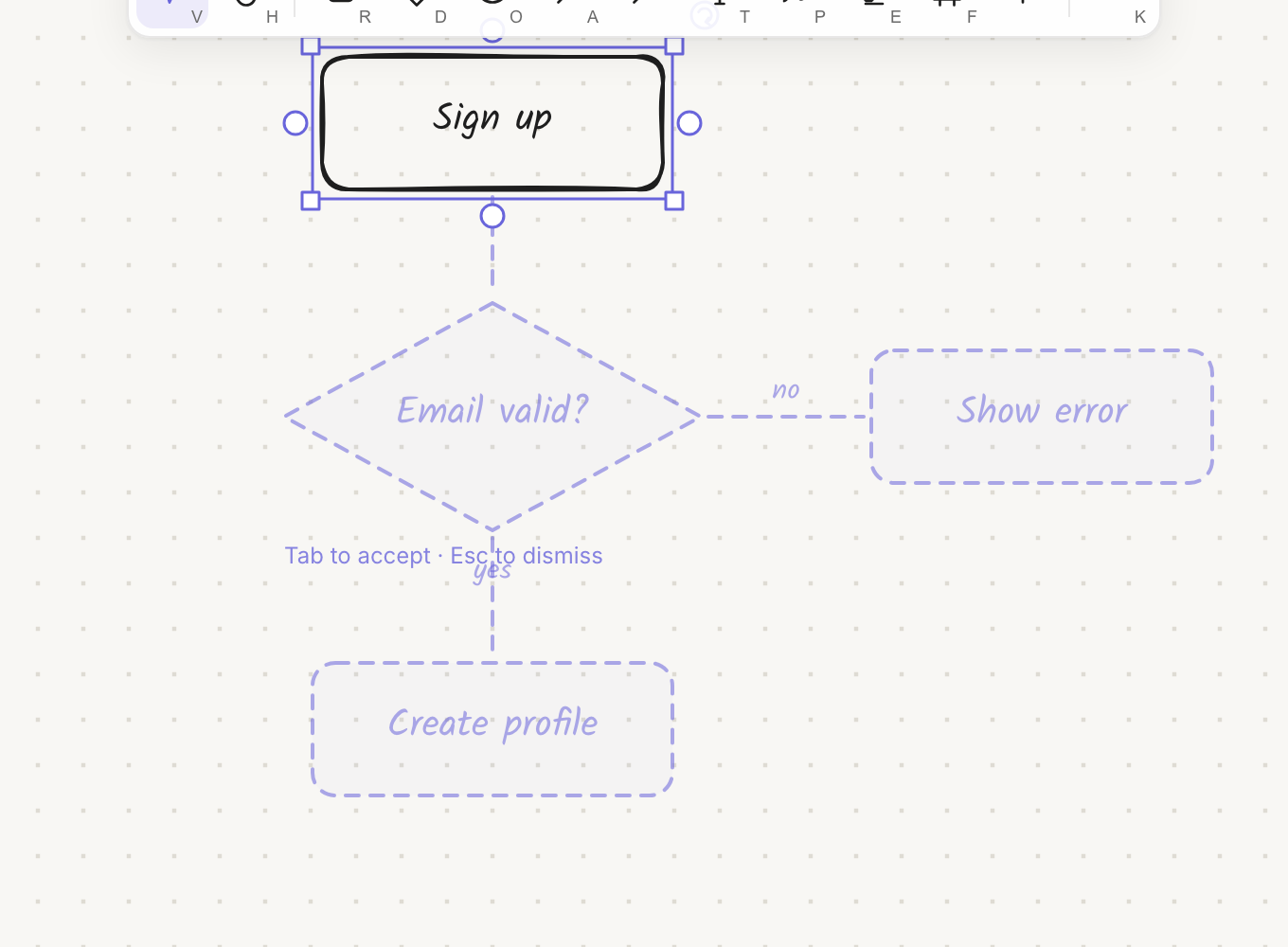
What you keep takes the style of your box and counts as one undo step. Smart Assist then selects the newest box and keeps going from there.
If you keep pressing Esc: each Esc makes Smart Assist wait a little longer before suggesting again, up to about two seconds. The extra wait wears off after a minute or two, and accepting a suggestion resets it. Clicking elsewhere doesn't count.
Placement: Kelvo places every suggested box itself, in a tidy tree beside your box, so suggestions never land on top of your work.
What suggests what
- With AI: Smart Assist sends a short summary of the boxes around the one you're working on and streams back up to three next steps. Each appears as soon as it's ready.
- On-device (always, and instantly): a decision diamond gets a "yes" and a "no" branch for any it's missing, and a numbered step ("Step 3") gets the next number ("Step 4").
Auto-draft
In Auto-draft, suggestions are added to the board right away as dashed, semi-transparent drafts. The chip shows how many there are, with ✓ Keep all drafts and ✕ Discard all drafts.
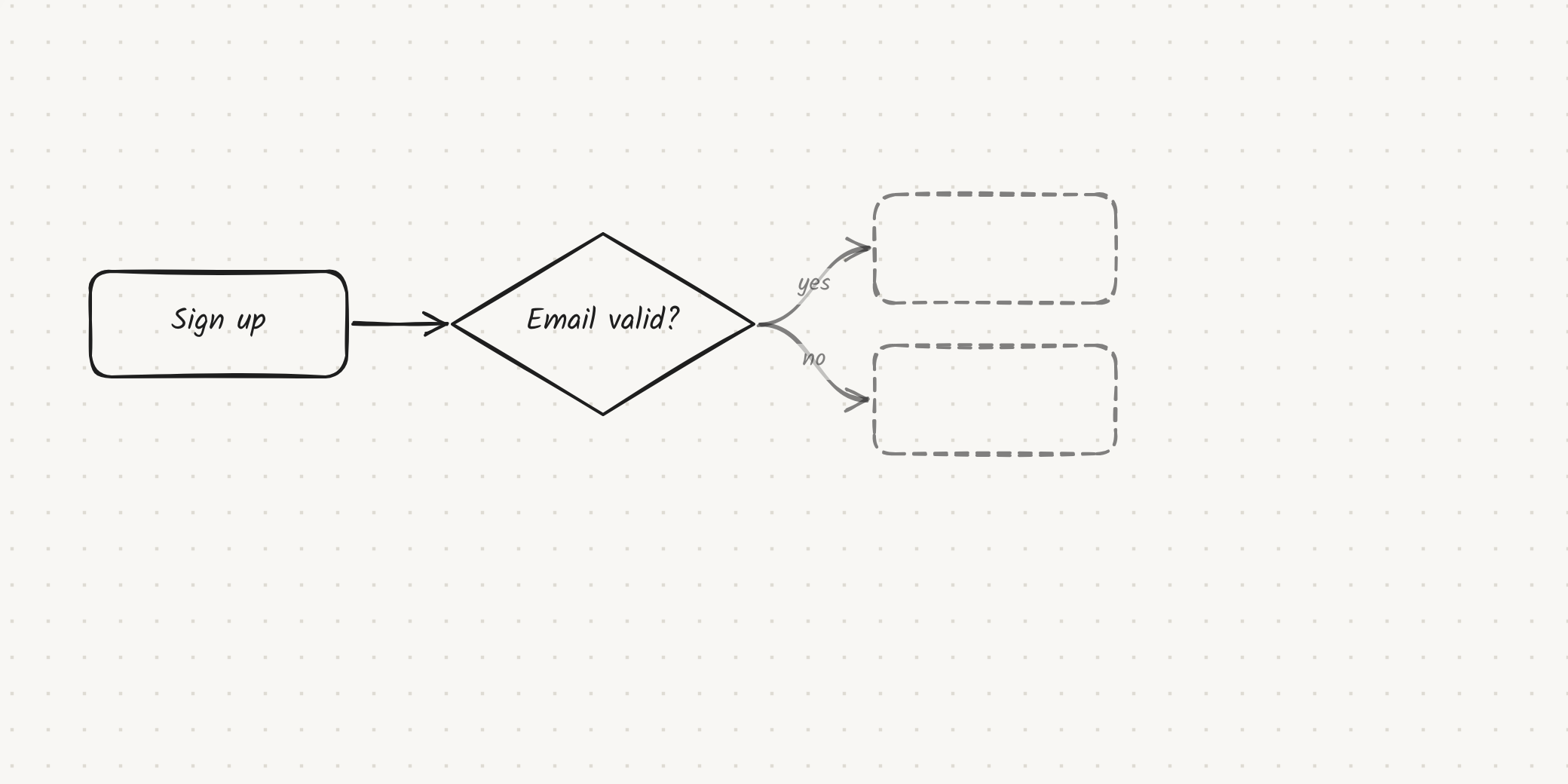

Editing a draft's label keeps that one. Drafts are left out of exports until you keep them.
Label completion
While you type a label (with Smart Assist on), Kelvo offers the rest of it in grey after a short pause.
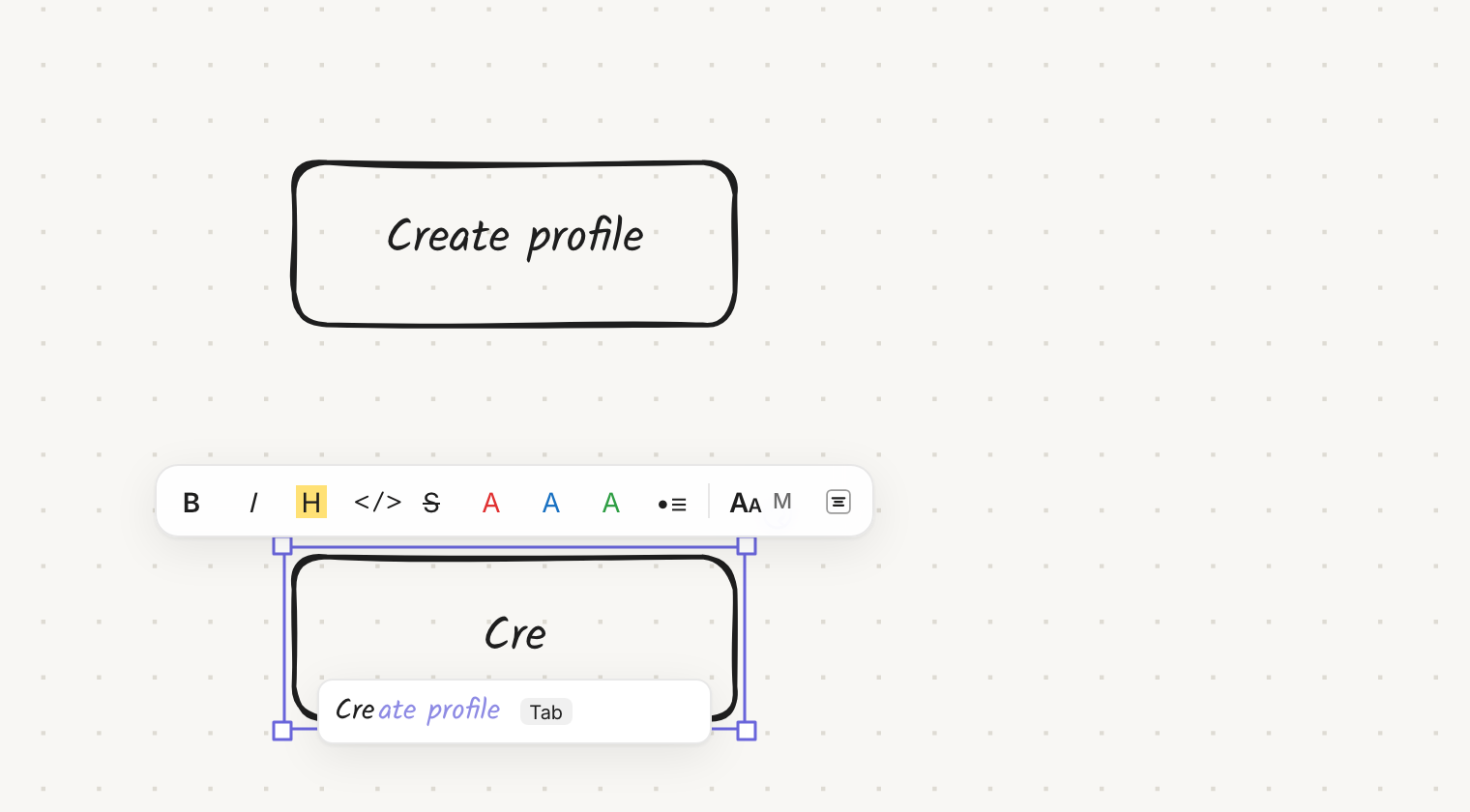
- Tab accepts the whole completion. → at the end of the text accepts one word.
- Completions come from labels already on your board. They run on your device, so they're instant and don't count toward your AI limit.
- You need to type at least two characters. Completion doesn't run in code blocks, table cells or link labels.
A label for a new box: when you add a box after another one (Tab while typing a label, or dragging from a connect dot), the new box opens empty and Smart Assist offers its best guess for the next step as a completion. Tab keeps it; just start typing to write your own. With AI this is one request per new box.
Improve (⌘I)
Select one or more boxes and press ⌘I, or click Improve in the selection bar. Smart Assist rewrites the labels to be clearer and can change a box's shape: questions become diamonds, starts and ends become ellipses.
The changes apply directly as one undo step; ⌘Z brings back the original. Without AI, Improve still tidies spacing and capitalisation.
Inside a label you're editing, ⌘I means italic instead.
Check diagram
When you want a second look at a diagram, click the ✓ button at the bottom left (next to Search, Layers and Version history), or run Check diagram from the command palette. A panel lists anything worth a look on this page. Nothing is flagged while you draw.
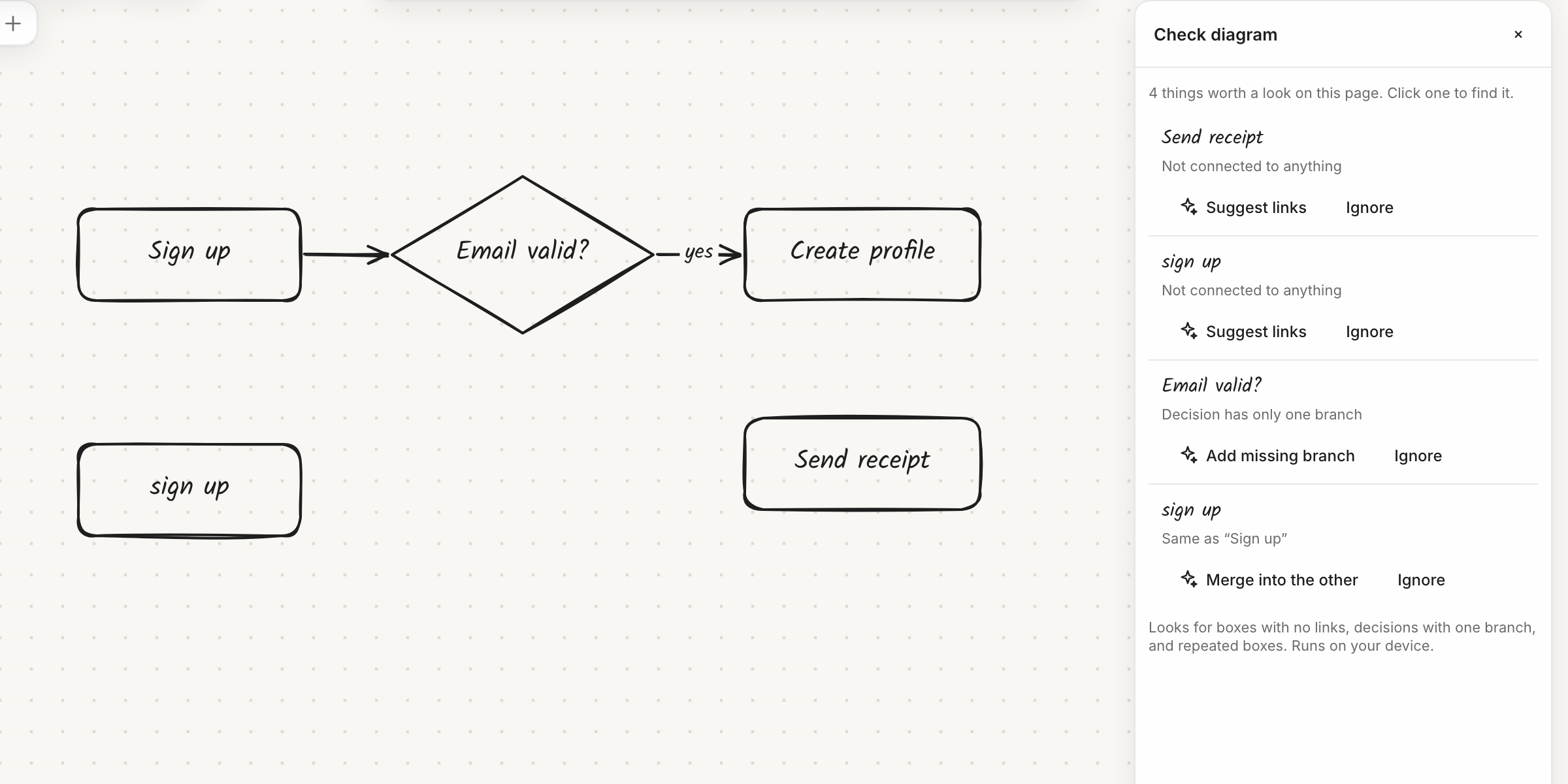
| Finding | When | Fix |
|---|---|---|
| Not connected to anything | The page has three or more linked boxes and this one has no links | Suggest links |
| Decision has only one branch | A diamond with exactly one outgoing link | Add missing branch |
| Same as "…" | Two boxes have the same label (ignoring case and punctuation). Short labels and ones that often repeat, such as "Yes", "No", "Done" or "Retry", don't count | Merge into the other: its links move to the remaining box |
- Click a finding to select its box and bring it into view.
- The list updates as you edit, so fixed findings drop off.
- Ignore hides a finding until you reload.
- Checks run on your device, whatever the Smart Assist mode.
Find missing links
Select some boxes and run Find missing links from the command palette. Smart Assist proposes up to four links as ghosts; Tab keeps them.
Ask Kelvo (@kelvo)
@kelvo is part of Pro. Make diagram and Convert sketch work on every plan.
Write @kelvo and what you want in any box, sticky note or text, then press Enter:
We sell shoes online and it is good. @kelvo improve my textrewrites that text.@kelvo create a signup flowin a new text draws the flow there.Sign up @kelvo add the steps that followin a box grows the diagram from that box.
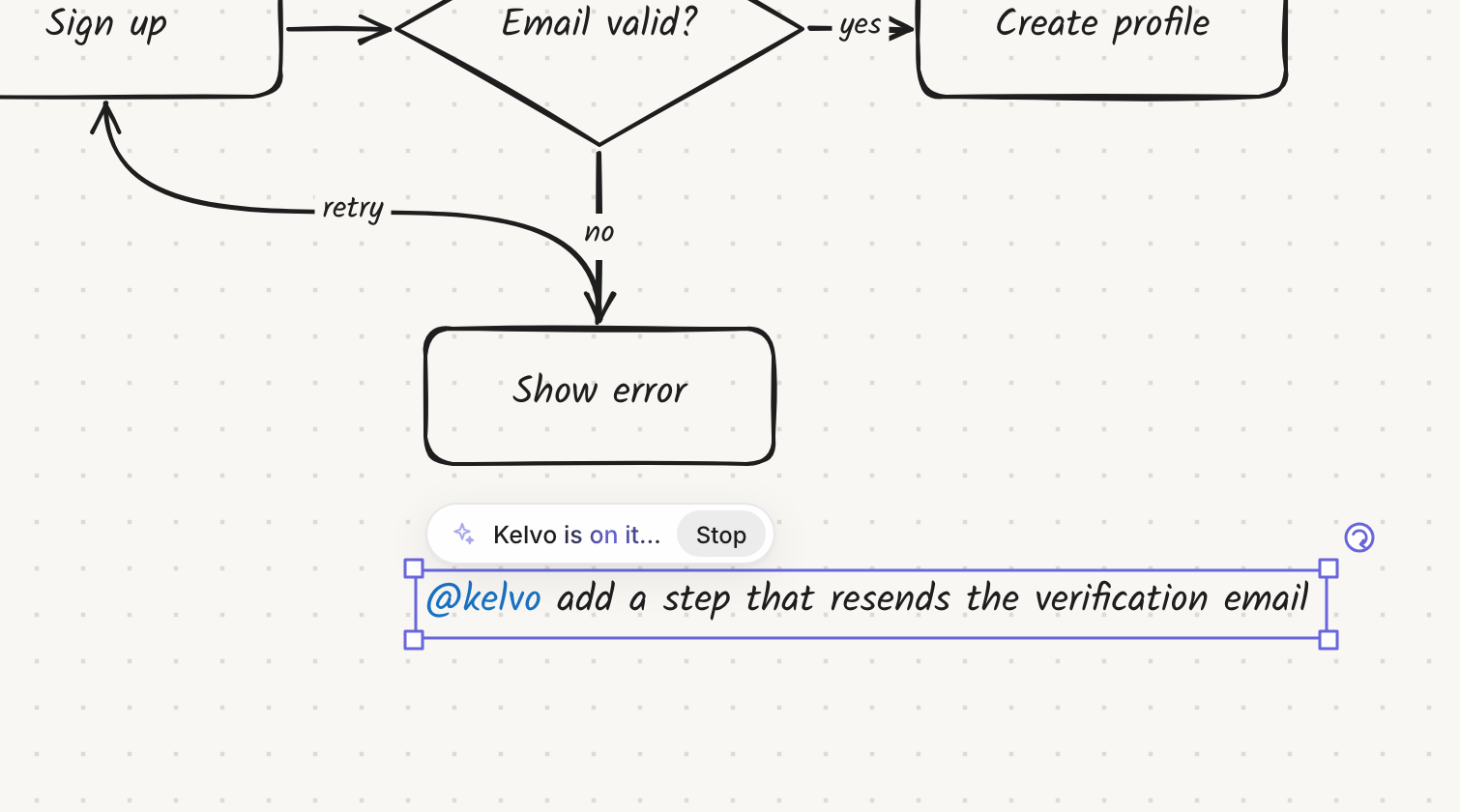
- Where to write it: anywhere you can type a label: a box, a sticky note or free text. @kelvo turns blue as you
type it, to show it's a command. Everything after it is the request; what stands before it is the item's own text. Press / to start one quickly: with one item
selected, its label opens with
@kelvoalready typed; with nothing selected, a new text starts at the pointer. The @ button in the top-right corner shows a short reminder of all this. - While Kelvo works: the request stays written and the item shows Kelvo is on it…. Stop (or Esc) cancels it, and the request stays where it is.
- When it's done: the change is made and the request disappears from the item. A text that held only the request disappears with it. It is one undo step: ⌘Z takes the change away and puts the request back.
- What it can see: the text of the item you wrote in, and a summary of the boxes in view.
- What it can do: rewrite the text of the item you wrote in (improve, shorten, translate, continue, or write something new there), add, rename, reshape and delete boxes, add or remove links, and make tables.
- Tables: ask for one (
@kelvo compare the three plans in a table,@kelvo a weekly cleaning schedule for four people, or@kelvo turn this into a tablein a text that holds a list) and a real table goes on the board, with a header row, ready to edit like any other table. - Screens (Pro+): ask for a screen, a page or an app's flow (
@kelvo login screen for mobile,@kelvo checkout flow for a desktop shop) and Kelvo draws it as wireframe screens, side by side, with real words in them. Each part can then be changed like one you added yourself. - What it can't do: it can't move or rearrange existing boxes; Kelvo places new boxes itself. It only works on your board: it won't answer general questions or write code.
- If nothing was done: the request stays so you can reword it, and a short message says why. To send it again, open the label and press Enter.
- What a request counts as: most requests count as one AI suggestion. A request for a whole diagram ("create the whole architecture diagram"), a long request, or a rework of the board counts as one large diagram generation instead, and gets more room for its answer. Tables always count as one suggestion. One screen counts as one suggestion; a flow of several screens ("onboarding flow for an app", "three screens for a to-do app") counts as a large diagram generation.
You can also type a request into the command palette (⌘K) and choose Ask Kelvo.
Make diagram
Write a list or a rough outline in any box, for example a sticky with one step per line, or A -> B -> C. Select it
and click Make diagram in the selection bar.
Smart Assist proposes a diagram to the right of the note. Tab keeps it.
A note qualifies if it has three or more lines, contains an arrow (->, →, =>), or starts with a Mermaid keyword
such as flowchart or sequenceDiagram. Long notes use the larger model.
Convert sketch
Draw a diagram with the pen: boxes, arrows, even handwritten labels. Select the strokes and click Convert sketch.
Smart Assist reads an image of the strokes and proposes real boxes and links in their place. Your strokes are outlined in red to show they'll be replaced. Tab replaces the sketch; Esc keeps it as drawn.
What needs AI, and what works on your device
| Feature | Without an AI connection |
|---|---|
| Suggestions | Diamond branches and numbered steps only |
| Auto-draft | The same on-device suggestions, as drafts |
| Label completion | Fully works: it always runs on your device |
| Suggested label in a new box | The next number for numbered steps only |
| Improve | Spacing and capitalisation only |
| Check diagram | Fully works: checks always run on your device |
| Find missing links | One link to the nearest linked box |
| @kelvo requests, Make diagram, Convert sketch | Not available |
For exactly what is sent when AI is used, see Privacy.