Organising a board
Pages
With Pro, a board can have several pages. On Guest and Free, each board has one page; boards that already have more pages keep them all, and you can still switch, rename, reorder and delete them. The page tabs are at the top left.

| To | Do this |
|---|---|
| Add a page (Pro) | Click + next to the tabs, or run New page from the command palette |
| Switch pages | Click a tab. Each page remembers where you were |
| Rename | Double-click the tab, type, press Enter |
| Reorder | Use ‹ › on the current tab |
| Delete | Click × on the current tab and confirm. A board always keeps at least one page |
Each page has its own layers and version history. Search covers every page.
Layers
Open Layers from the button at the bottom left.
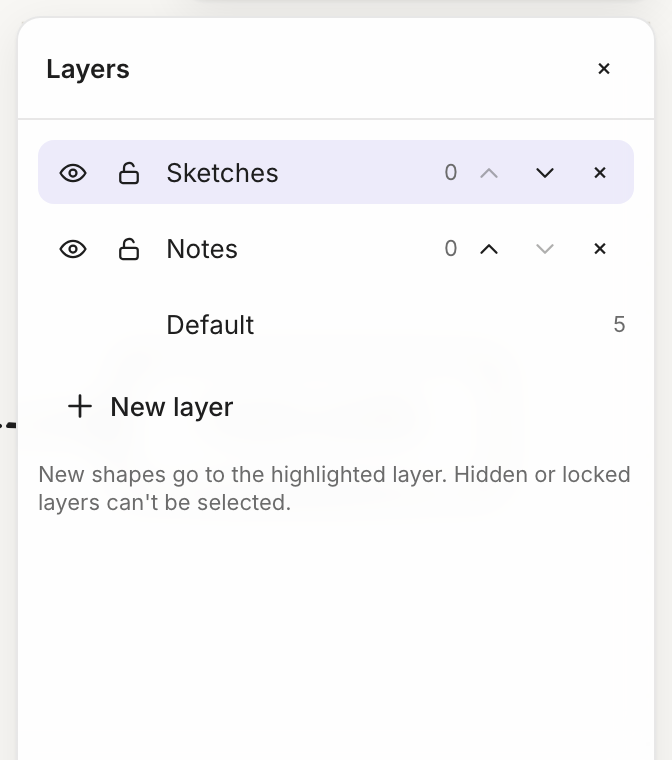
- New layer adds a layer and makes it active. New shapes go to the highlighted (active) layer.
- The eye hides a layer and the lock locks it. Items on hidden or locked layers can't be selected.
- ↑ ↓ change the stacking order: higher layers draw on top.
- Double-click a name to rename it.
- × deletes the layer but keeps its shapes: they move to Default.
- Move selection to… moves the selected items to another layer.
- Each layer shows how many items it holds.
Default holds everything that isn't on a named layer. Layers belong to a page. When you open a page, the active layer goes back to Default.
Tidy up (⇧T)
Press ⇧T, or click Tidy up in the selection bar, to re-arrange a messy diagram. Select some boxes to tidy just those; with nothing selected, it tidies every linked box on the page.
- Steps line up in the direction your diagram already flows (left to right, top to bottom, …), with even gaps and as few crossing links as possible. A link back to an earlier step stays a loop.
- The first box of the flow stays where it is, so the diagram doesn't jump away. Boxes glide to their new places, and ⌘Z puts everything back in one step.
- Boxes keep their size, style and turn. Links follow by themselves.
- What doesn't move: locked boxes, mind maps (they arrange themselves), boxes that aren't linked to anything (notes and labels stay where you put them), and boxes grouped with something that isn't being tidied.
- Frames: the boxes inside a frame are tidied on their own and stay inside it; the frame grows if they need more room.
- Tidy up runs on your device and doesn't use any AI. The first time you use it, the app downloads its layout engine; after that it works offline too.
Groups
Select two or more items and press ⌘G, or use the group button in the selection bar. Clicking any member then selects the whole group. ⌘⇧G ungroups. Groups don't nest: grouping already-grouped items makes one new group.
Locking
⌘⇧L locks the selected items, so they can't be selected or moved by accident. To unlock them, open Layers and click Unlock N locked item(s).
Stacking order
| Shortcut | Does |
|---|---|
| ⌘] | Bring forward |
| ⌘[ | Send backward |
| ⌘⇧] | Bring to front |
| ⌘⇧[ | Send to back |
Bring to front and send to back are also in the selection bar.
Search
Press ⌘F, or click the search button at the bottom left, to search labels on every page.
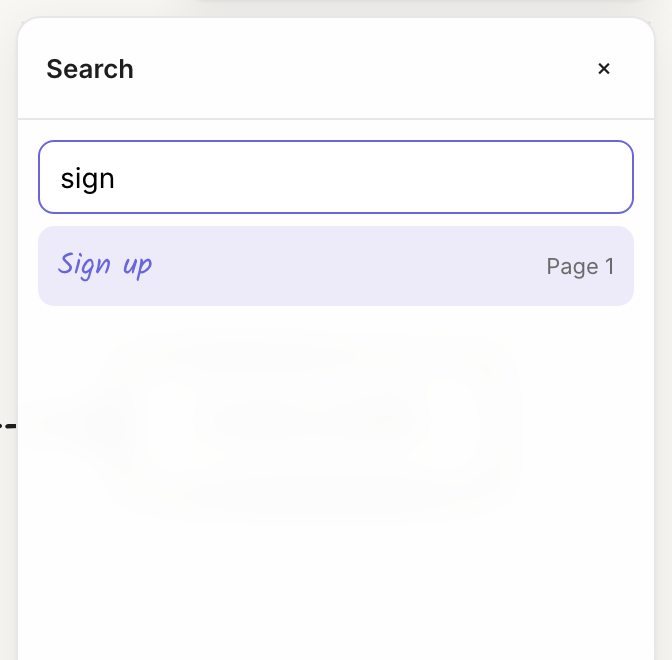
- Search matches part of a label, ignoring case, in boxes, text, sticky notes, code blocks, frames and link labels. It doesn't search table cells.
- ↑ ↓ move through the results. Enter jumps to a result, switching pages if needed. Esc closes search.
Version history
Open Version history from the button at the bottom left.
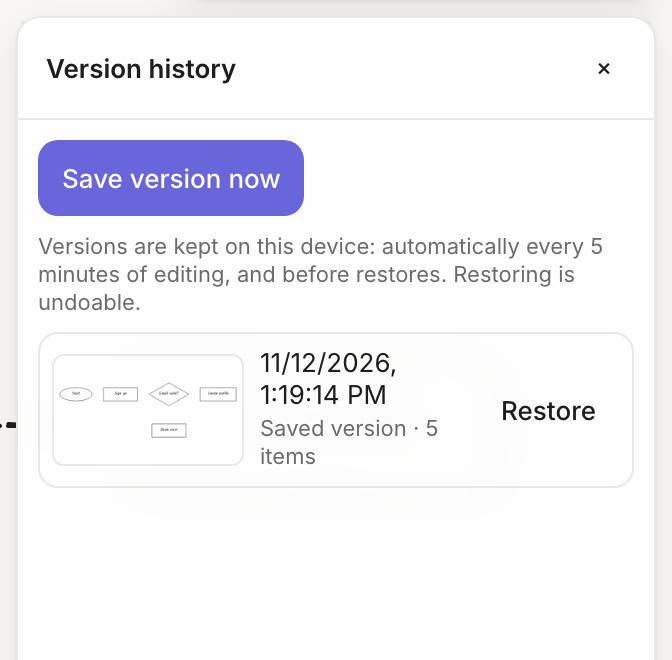
- Kelvo saves a version automatically every 5 minutes while you edit, and when you switch pages.
- Save version now saves one immediately (also in the command palette as Save a version now).
- Restore replaces the page with that version. Kelvo first saves the current state as "Before restore", and the restore itself can be undone with ⌘Z.
- Each page keeps its 50 most recent versions, on this device.
⌘S isn't a Kelvo shortcut: your work is already saved continuously. Pressing it opens your browser's own "Save page" dialog.