The canvas
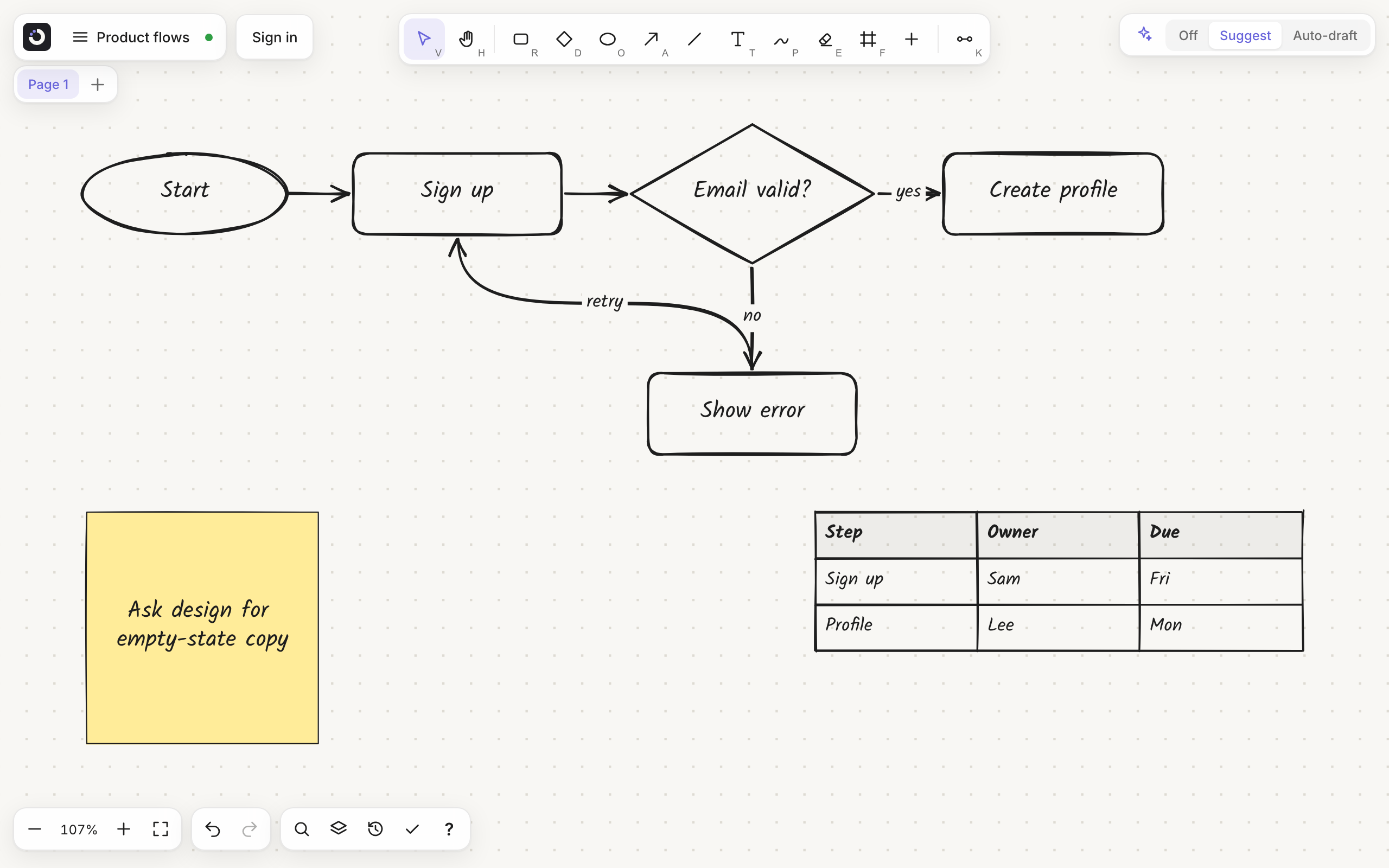
The screen
| Where | What it is |
|---|---|
| Top left | The board menu (click the board name), the save dot, and Sign in or your account. Below them, the page tabs |
| Top centre | The toolbar |
| Top right | Smart Assist: its status, the Off / Suggest / Auto-draft switch, and the @ button, which explains @kelvo requests (Pro) |
| Bottom left | Zoom controls, undo and redo, and buttons for Search, Layers and Version history |
| Bottom centre | The selection bar, when something is selected |
The toolbar

| Tool | Key | What it does |
|---|---|---|
| Select | V or 1 | Select, move, resize and link |
| Hand | H | Drag to pan |
| Rectangle | R or 2 | Drag to size, or click for a standard box |
| Diamond | D or 3 | A decision box |
| Ellipse | O or 4 | A start or end box |
| Arrow | A or 5 | Drawn between two boxes, it becomes a link |
| Line | Like Arrow, without an arrowhead | |
| Text | T or 7 | Click to type free text |
| Pen | P or 6 | Draw freehand; boxes, ellipses, diamonds, lines and arrows snap to clean shapes when you lift |
| Eraser | E or 0 | Erase whole shapes, or cut pen strokes |
| Frame | F | An area that becomes a slide when you present |
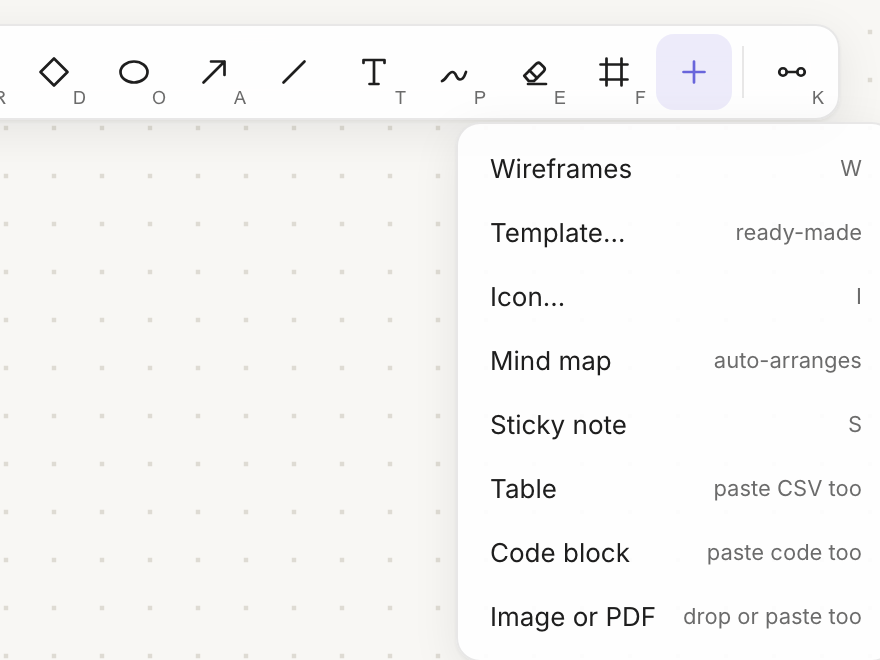
| Insert (+) | Mind map, sticky note, table, code block, image | |
| Link mode | K | Tap boxes one after another to chain them |
After you draw a shape, the tool switches back to Select and the label opens for typing. Esc steps back: it dismisses suggestions, then closes menus, then returns to Select, then clears the selection.
Moving around
| To | Do this |
|---|---|
| Pan | Scroll with a mouse wheel or trackpad, drag with the Hand tool, hold Space and drag, or drag with the middle mouse button. Shift+scroll pans sideways |
| Zoom | Pinch on a trackpad or touch screen, or ⌘+scroll. ⌘+ and ⌘- zoom in and out |
| Reset to 100% | ⌘0, or click the zoom percentage |
| See everything | ⇧1 zooms to fit the whole board |
Zoom runs from 5% to 800%. On touch screens, a quick flick keeps the board gliding for a moment, unless your system asks for reduced motion.
Kelvo remembers where you were on each page and returns you there.
Selecting
- Click to select. Shift+click adds or removes an item.
- Drag on empty space to draw a selection box. It selects items that are fully inside it.
- ⌘A selects everything on the page.
- Clicking any member of a group selects the whole group.
- Locked items and items on hidden or locked layers can't be selected.
Arrow keys nudge the selection by 1; Shift+arrow nudges by 10. Delete removes it.
While you drag a box, it snaps to the edges and centres of nearby boxes and guide lines appear. Hold ⌥ while dragging to move freely; it also brings along everything the box links to downstream.
The selection bar
When something is selected, a bar appears at the bottom with the actions that fit it.

Depending on the selection, it offers:
- a shape switcher (rectangle, decision, ellipse), for boxes
- stroke colours
- Link, for two or more boxes
- Improve and Mind map
- Make diagram, for a note that looks like a list
- Convert sketch, for pen strokes
- the Style popover
- bring to front and send to back
- group and ungroup
- delete
Tables also get row and column buttons, and free lines get arrowhead toggles.
The right-click menu
Right-click anything (on a Mac, Ctrl-click works too; on a touch screen, press and hold) for what you can do with it there. The menu changes with what you clicked:
| You right-click | You get |
|---|---|
| The empty board | Text and Sticky note right where you clicked, Insert (table, code block, mind map, image or PDF, icon, template), Paste here, Select all, Tidy up the page, Zoom to fit, Background |
| A box or text | Edit text, Shape, mind map on/off, cut / copy / paste / duplicate, Select along its links, Put in a frame, Order, Lock, Smart Assist (Improve wording, Suggest next steps), Copy as PNG, Copy as Markdown, Delete |
| Several items | The same, plus Link in order, Link all to the first, Group / Ungroup and Tidy up |
| A table | Edit cell and a Table menu: add a row or column, remove the last one, header row on/off |
| A code block | Copy code and Wrap long lines |
| A frame | Rename frame, Present from this frame, Select what's inside |
| A link | Add label / Edit label, Line style (elbow, straight, curved), Arrows, Reverse direction, Delete link |
| A locked item (such as a PDF page) | Unlock, and the empty-board actions |
Right-clicking an item that isn't selected selects it first; right-clicking inside a selection keeps it. With the keyboard, Shift+F10 (or the menu key) opens the menu for the selection: ↑ ↓ move, → opens a submenu, Enter runs, Esc closes.
Undo and redo
⌘Z undoes and ⌘⇧Z (or ⌘Y) redoes. Accepting a suggestion, an @kelvo request or restoring a version each count as one step. On touch screens, tap with two fingers to undo and three to redo.
The command palette
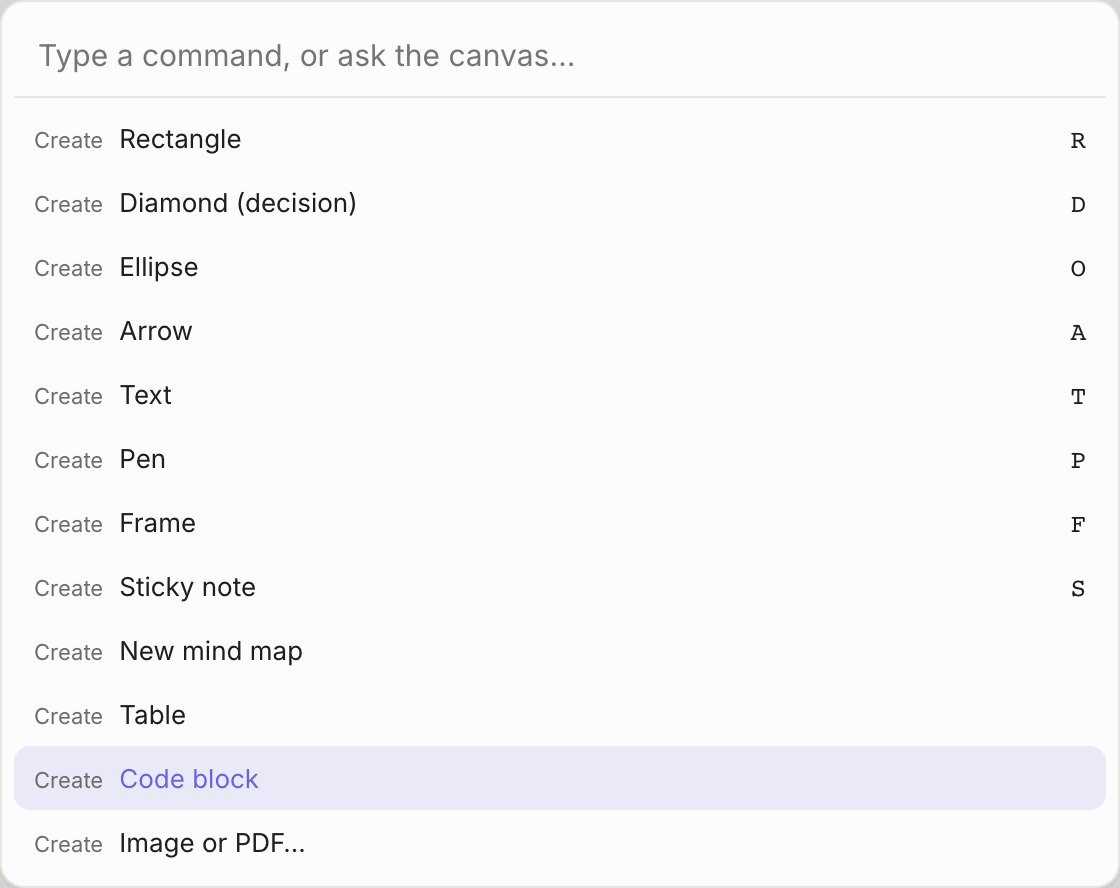
Press ⌘K to search every command by name. Typing something that isn't a command offers to ask Kelvo instead (Pro): it is written on the board as an @kelvo request and sent. See Command palette.