Getting started
Kelvo runs in your browser. There's nothing to install and no account to make: open the app and your first board is ready.
Open the app
- Go to the site and click Start drawing, or go straight to
/d. - The first time, Kelvo creates a board called My first board with a short welcome on it.
- Next time,
/dreopens the board you used last. Each board also has its own address,/d/<board id>, which you can bookmark in that browser.
Boards are saved in the browser that made them. A board address opened in another browser or on another device shows the message "That board isn't on this device", unless the board is synced. See Boards, files and offline.
Draw your first flowchart
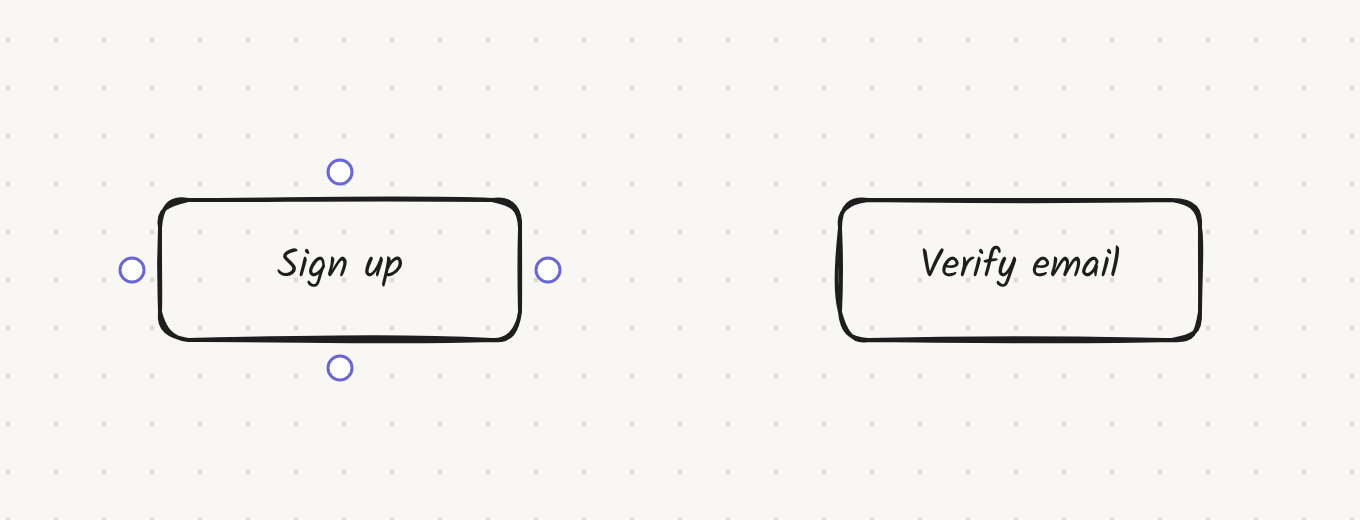
- Press R and click on the canvas. A box appears with its label ready for typing. Type
Sign upand press Enter. - Press Tab. A new box, already linked, appears next to the first one. Type
Verify emailand press Enter. - Hover a box: dots appear on its four sides. Drag a dot onto another box to link the two.
- Press ⌘Z to undo anything, and ⌘⇧Z to redo.
You don't need to save. Every change is written to your device within a fraction of a second; the dot next to the board name shows the save state.
Turn on Smart Assist
Smart Assist suggests the next step while you draw. It's off until you turn it on.
- In the top-right corner, click Suggest.
- Read the notice and click Turn on.

Now type a label and pause. After about half a second, the next step appears as dashed violet "ghost" boxes. Press Tab to keep them or Esc to dismiss them. Nothing is added to your board unless you accept it.
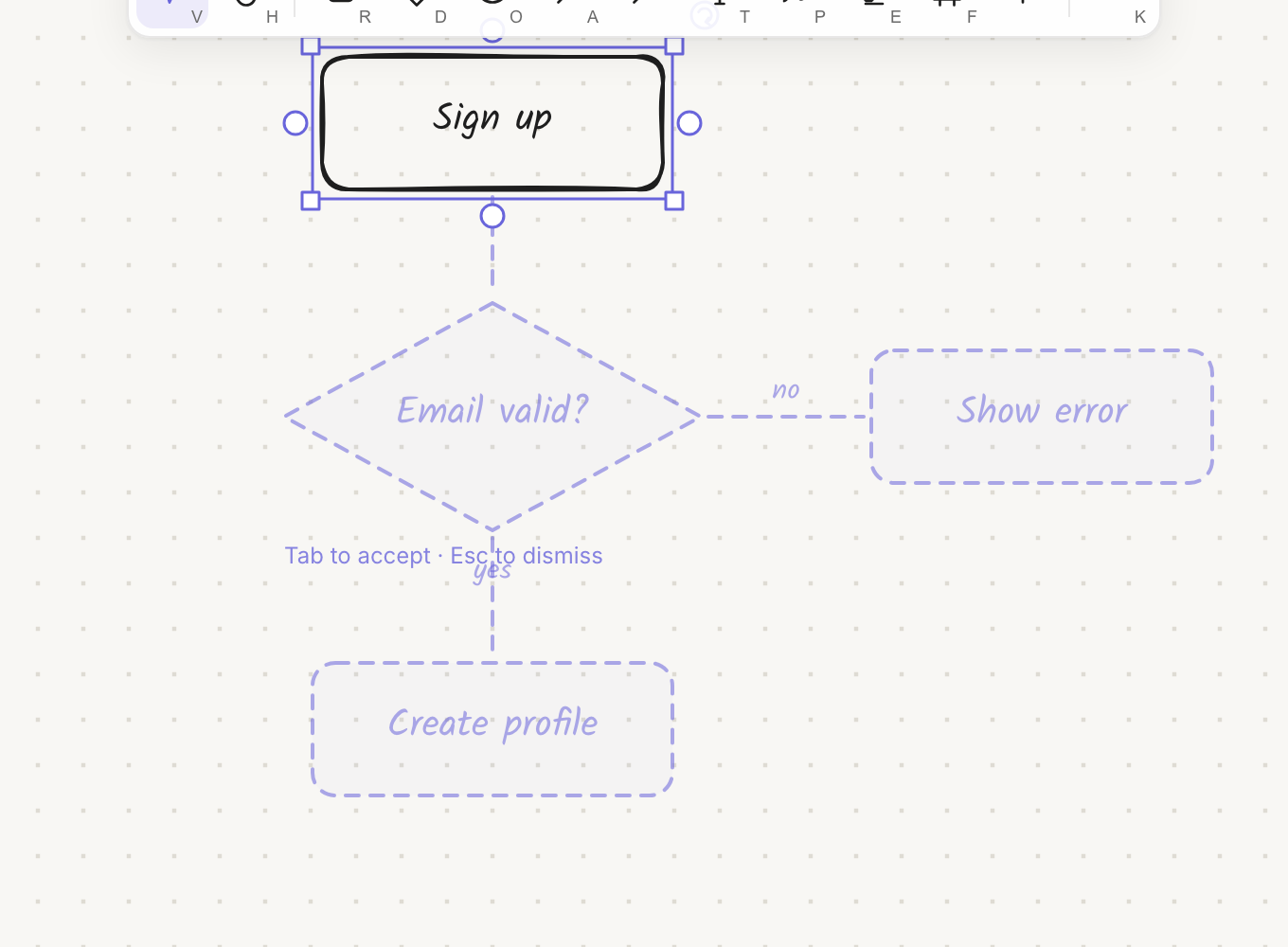
Without an AI connection, Smart Assist still works with simple on-device rules, and the chip shows AI unavailable. For example, a decision diamond gets "yes" and "no" branches. Smart Assist covers everything it can do.
Where to go next
- The canvas: learn the screen and how to move around
- Drawing: the pen, shapes and styles
- Keyboard shortcuts: the fastest way to work